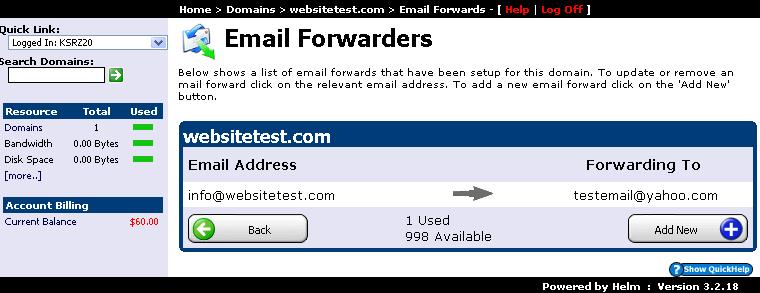
Email forwarding allows you to automatically redirect inbound messages from domain-specific mailboxes to external personal or corporate inboxes. Follow this step-by-step tutorial to create an email forwarder in WinWinHost:
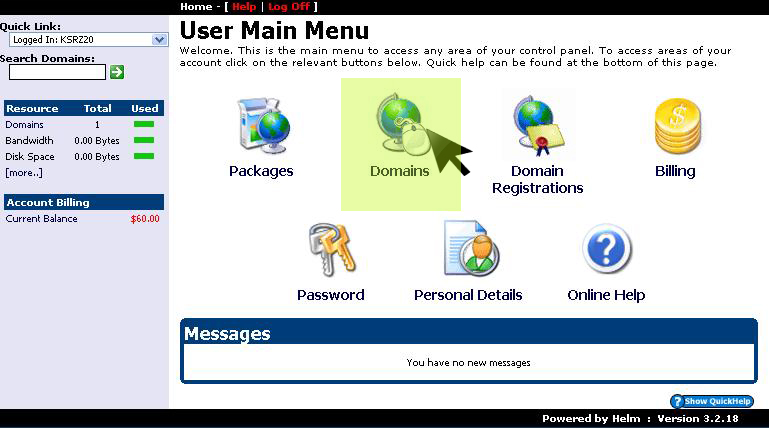
1. Navigate to Domains Section
From the main control panel menu, select the Domains option:
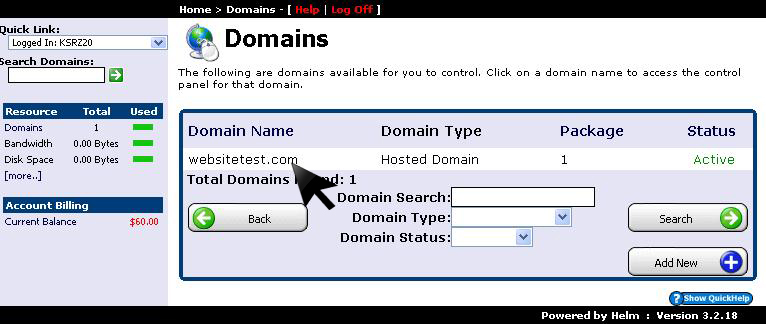
2. Select Target Domain
Click on the domain name for which you want to configure mail forwarding:
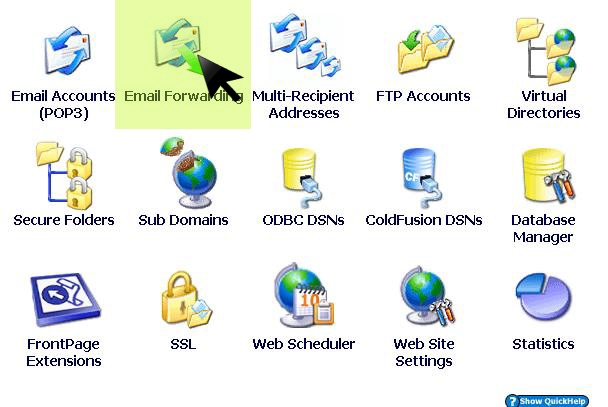
3. Open Email Forwarding Options
From the domain management options, click on Email Forwarding:
4. Add New Forwarding Rule
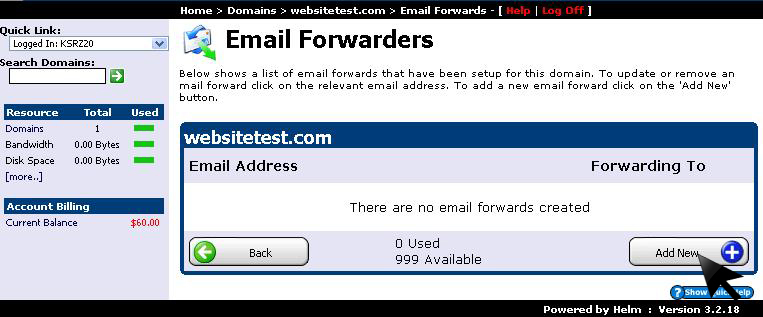
Click the Add New button to initialize a new forwarding alias:
5. Define Source & Destination Addresses
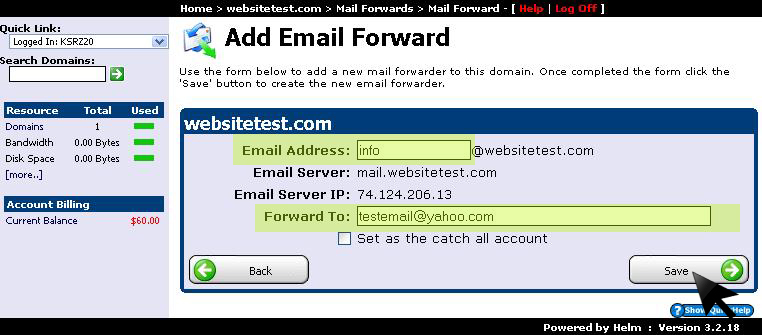
Enter the prefix for the incoming domain email and the target destination inbox where messages will be routed, then click Save:
6. Confirm Active Forwarder
The active email forwarder is now listed in your domain's routing table and begins processing incoming mail instantly: