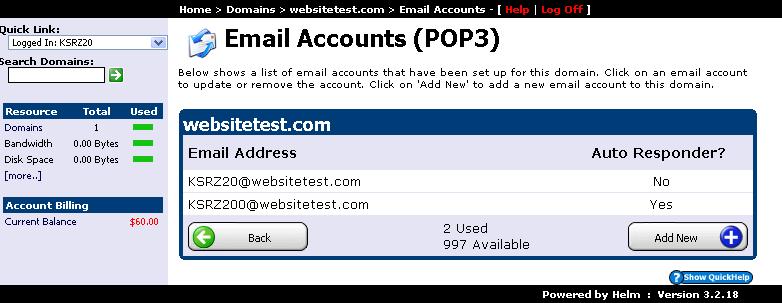
Creating custom domain email addresses (POP3/IMAP/SMTP) gives your business professional credibility. Follow this visual step-by-step guide to set up email mailboxes, configure catch-all addresses, and activate automated responders in WinWinHost:
1. Navigate to Domains Menu
From your account dashboard, select the Domains section:
2. Select Domain Name
Click on the target domain where you want to add the new email mailbox:
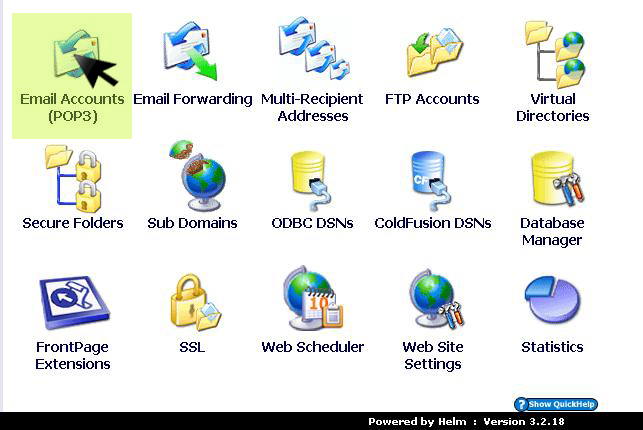
3. Open Email Accounts (POP3)
In the domain configuration options, click on Email Accounts (POP3):
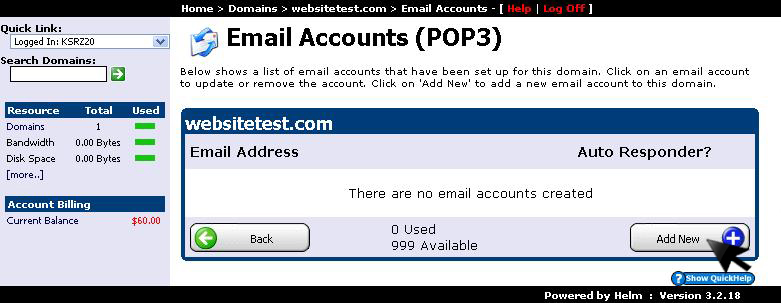
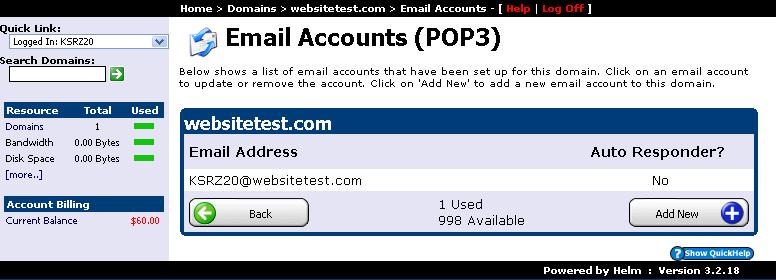
4. Click Add New Account
Click the Add New button to initialize a new mailbox creation form:
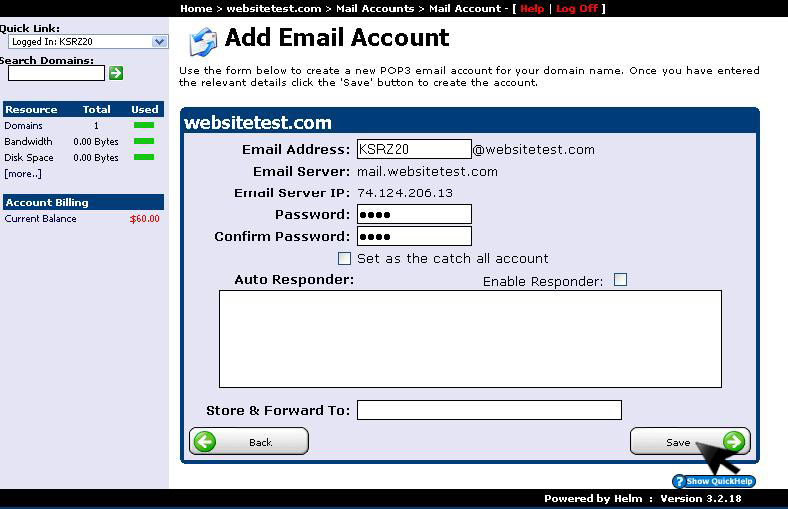
5. Define Username & Secure Password
Enter the desired mailbox name, assign a strong password, and click Save:
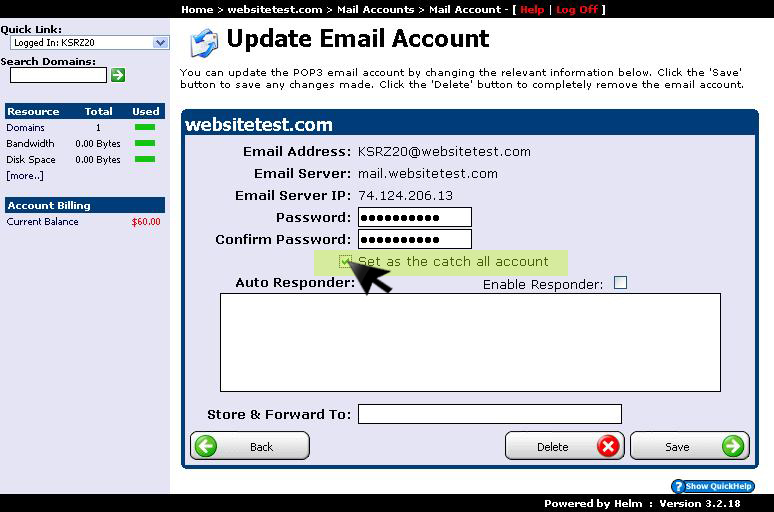
6. Configure Catch-All Routing (Optional)
Check Set as the catch-all account if you want this mailbox to capture all incoming messages sent to unregistered prefixes:
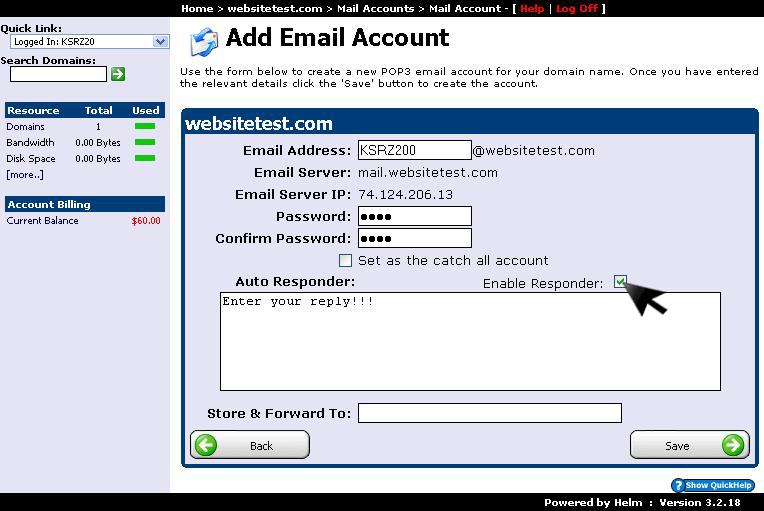
7. Set Up Automated Auto-Responders
Under Auto Responder settings, compose an out-of-office message or instant acknowledgment note to automatically reply to senders: