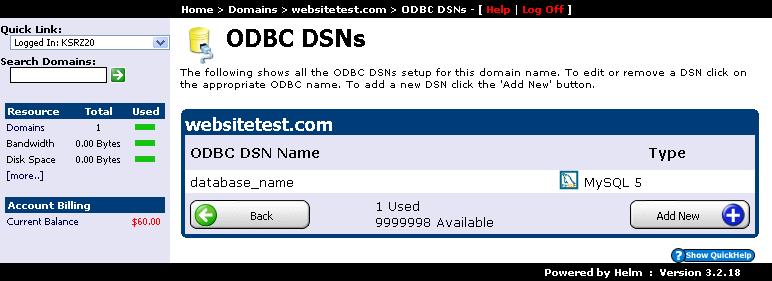
ODBC Data Source Names (DSN) allow database drivers and legacy web applications to establish structured connections to MySQL servers without hardcoding raw socket paths. Follow this visual step-by-step tutorial to configure an ODBC DSN in WinWinHost:
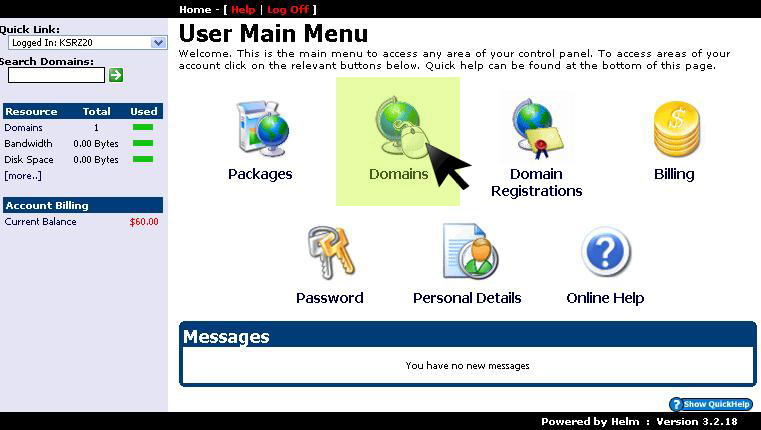
1. Access Domains Menu
From the main management dashboard, click on the Domains section:
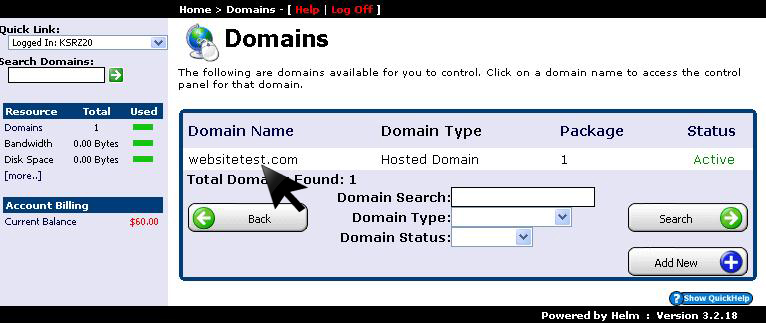
2. Select Target Domain
Click on the domain name for which you want to configure the ODBC data source:
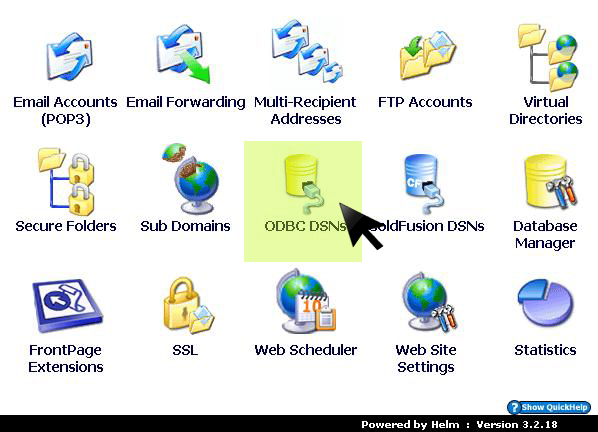
3. Open ODBC DSNs Manager
In the domain options menu, select ODBC DSNs:
4. Click Add New DSN
Click the Add New button to create a new database source connection:
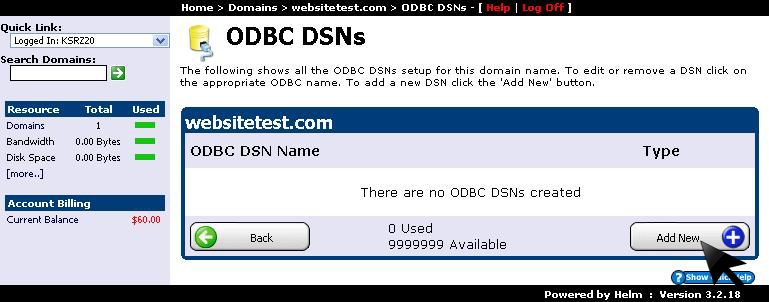
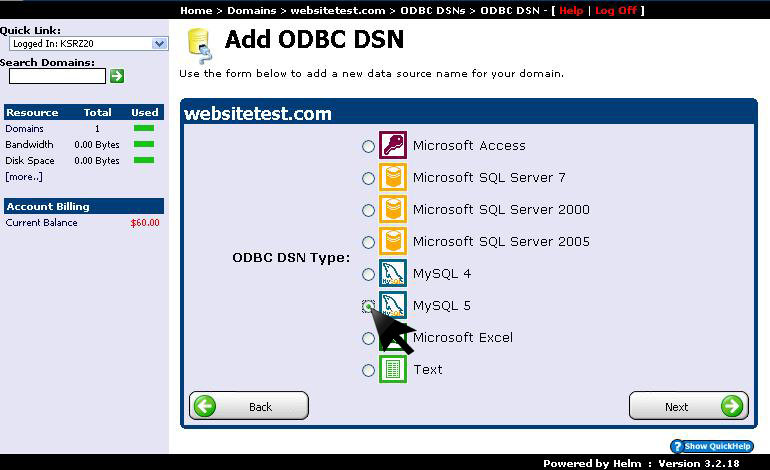
5. Select Database Driver Engine
Select MySQL 5 ODBC Driver from the driver list and click Next:
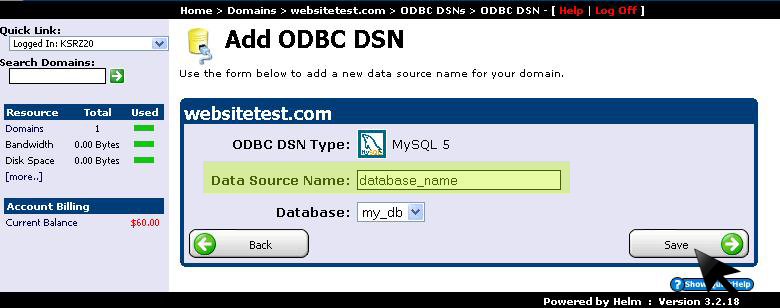
6. Configure DSN Name & Database Binding
Enter the DSN identifier and target database name, then click Save to register the data source:
7. Confirm Active ODBC DSN
The configured ODBC DSN is now active in your domain connection pool and ready for application integration: