
File Transfer Protocol (FTP) enables high-speed, reliable file uploading and directory synchronization between your local workstation and your WinWinHost web hosting account. Follow this guide to configure and transfer files using the free FileZilla FTP client:
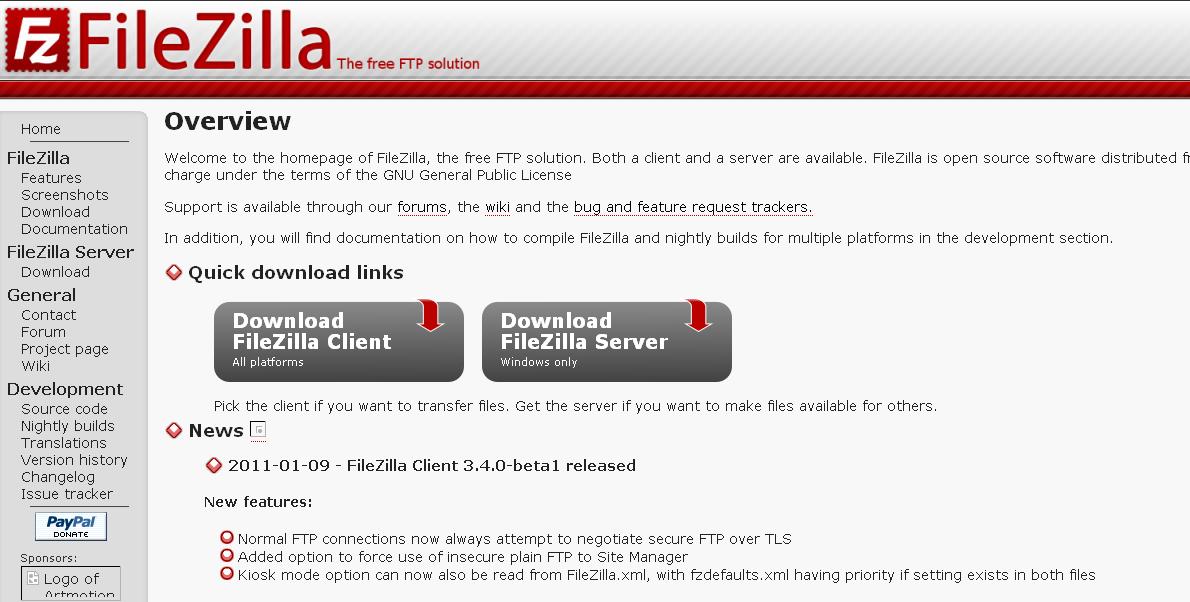
1. Download FileZilla Client
Visit the official FileZilla website and download the client installer for your operating system:
2. Install & Launch FileZilla
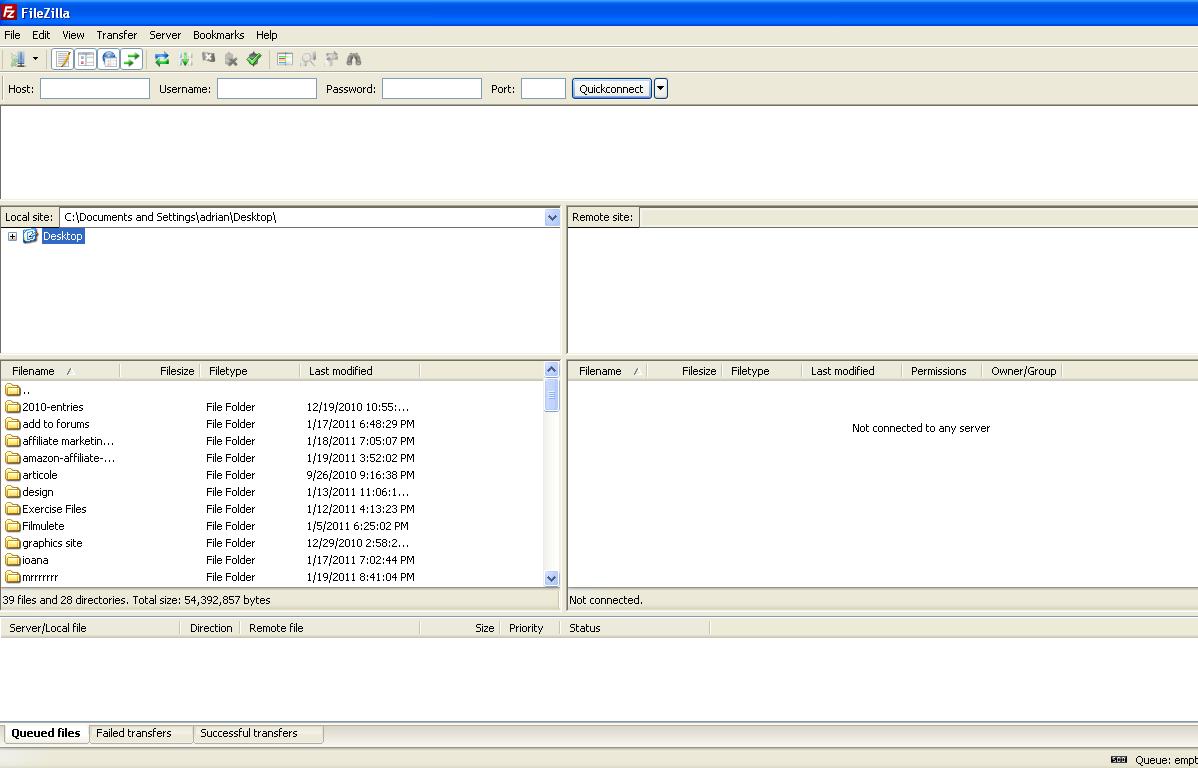
Run the downloaded installer using default settings and launch the FileZilla application:
3. Connect to WinWinHost FTP Server
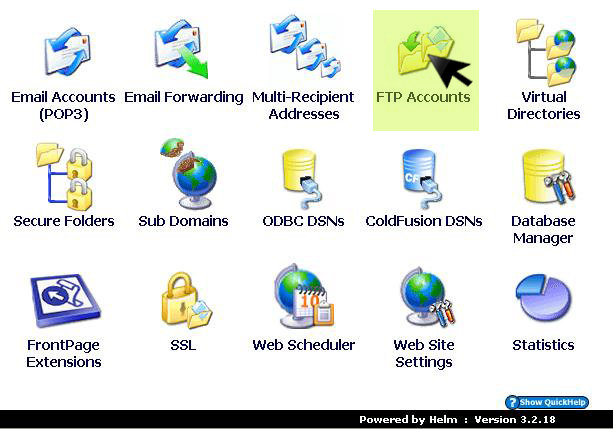
In the Quickconnect bar, enter your connection details and press Quickconnect:
- Host:
yourdomain.com(or your server IP) - Username: Your FTP account username
- Password: Your FTP account password
- Port:
21(or leave blank for default)
4. Upload Files to Public Document Root
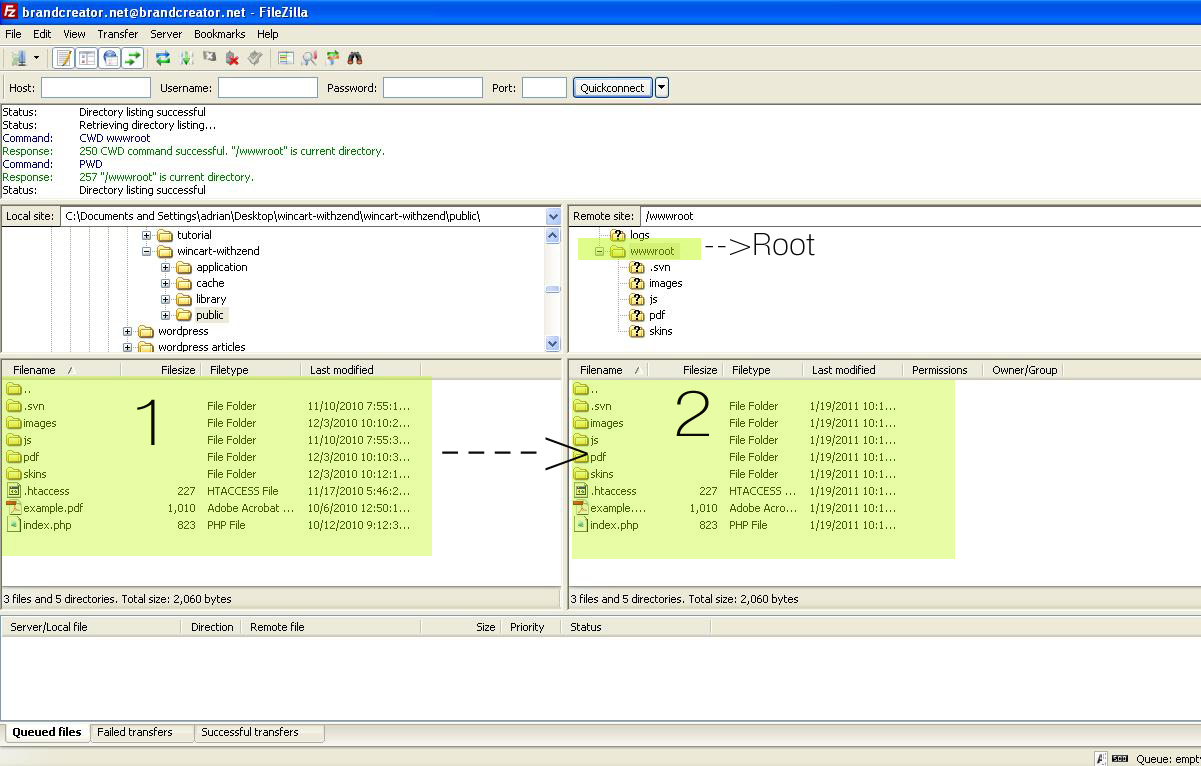
Navigate to your local project folder on the left pane and drag the files across to the remote wwwroot / public folder on the right pane:
5. Verify Website in Browser
Once the file queue transfer completes, navigate to your domain in your browser to verify that your homepage (e.g. index.html or index.php) renders live immediately.