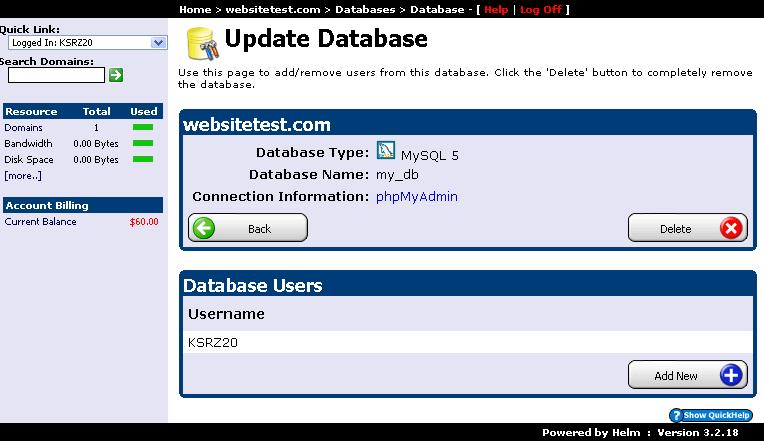
Each domain added to your WinWinHost account includes a management console where you can create sub-domains, email accounts, FTP users, and databases. Follow this step-by-step visual guide to create and configure a new MySQL database:
1. Select Domain from Domains Menu
In the "Domains" section of your control panel, click on the domain name you want to configure:
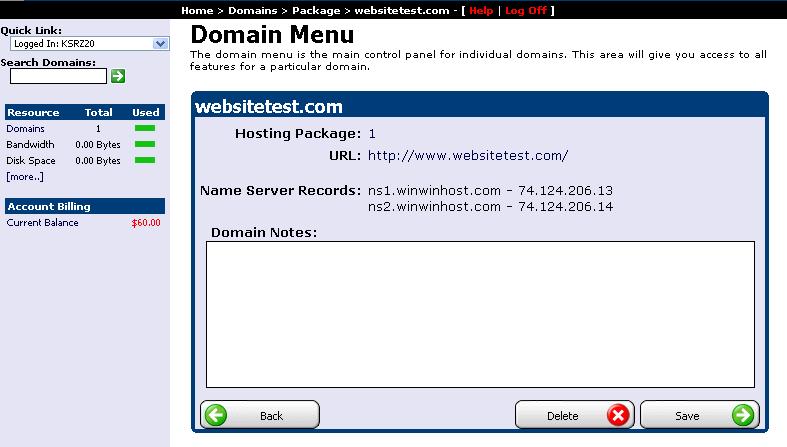
2. View Domain Details & Options
The next screen displays all configuration options and active features for the selected domain:
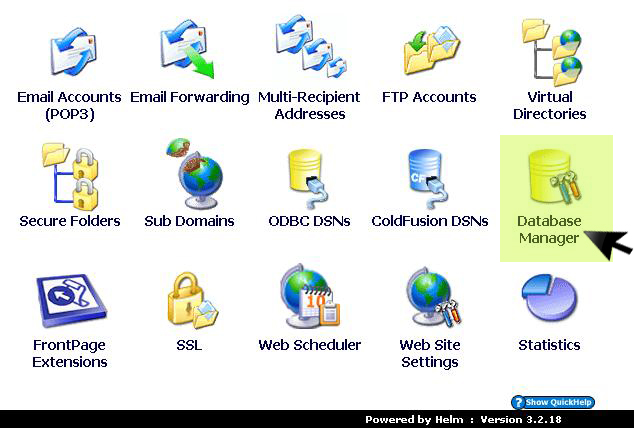
3. Open Database Manager
From the options list, click on Database Manager to access database configurations:
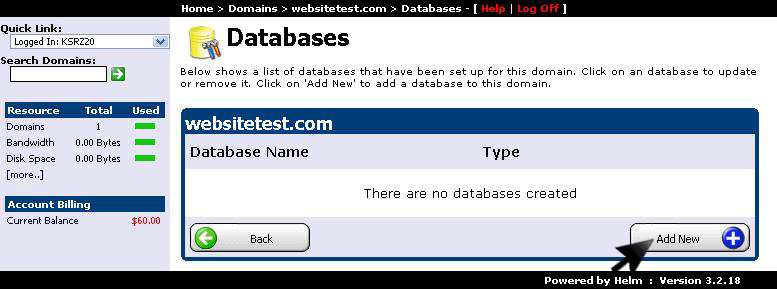
4. Click Add New Database
Click the Add New button to initialize a new database record:
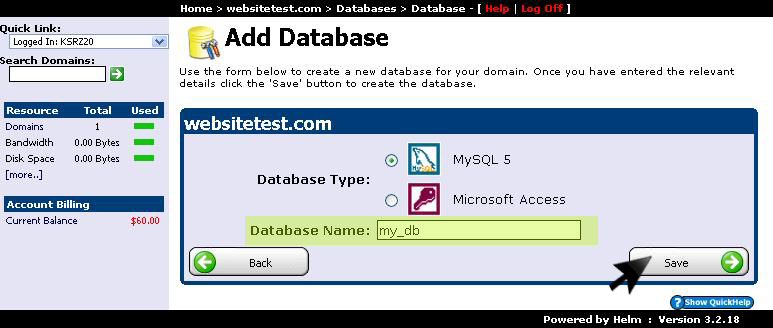
5. Select Database Engine (MySQL)
Choose MySQL Database from the engine options, enter your database name, and click Save:
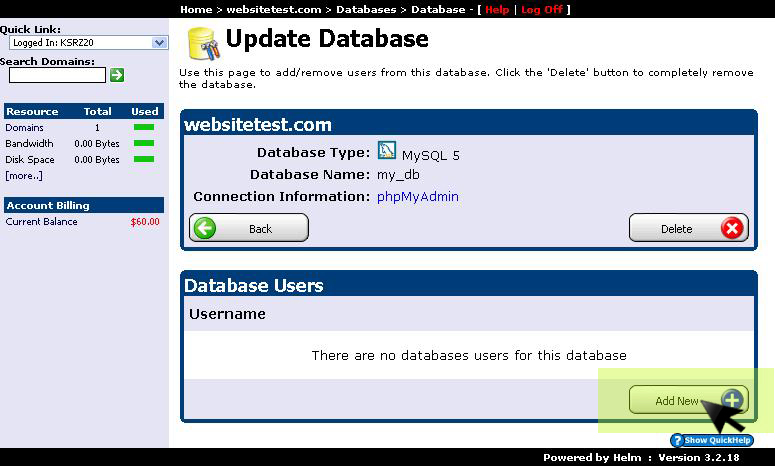
6. Add Database User & Credentials
Once the database is created, click Add New under Database Users to create your database user:
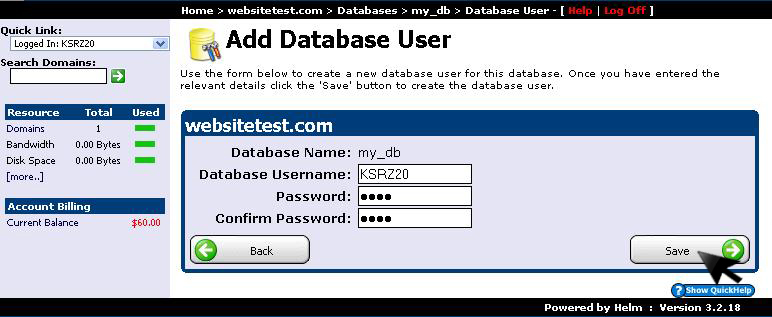
7. Set Secure Password & Save
Enter your desired username, enter and confirm your password, and click Save. Your database is now ready for application connection strings: